Pre-Work
Stop Prompting, Start Shipping
Tuesday, May 5, 2026 • 10am MT • Boulder Public Library
Get set up so we can hit the ground running.
All of this is
optional
- just for exploration. We'll walk through everything live.
Patrick McHeyser • Chris McDermut • Natalie Levy
1
Download Claude.
Get the desktop app - it's free.
1.
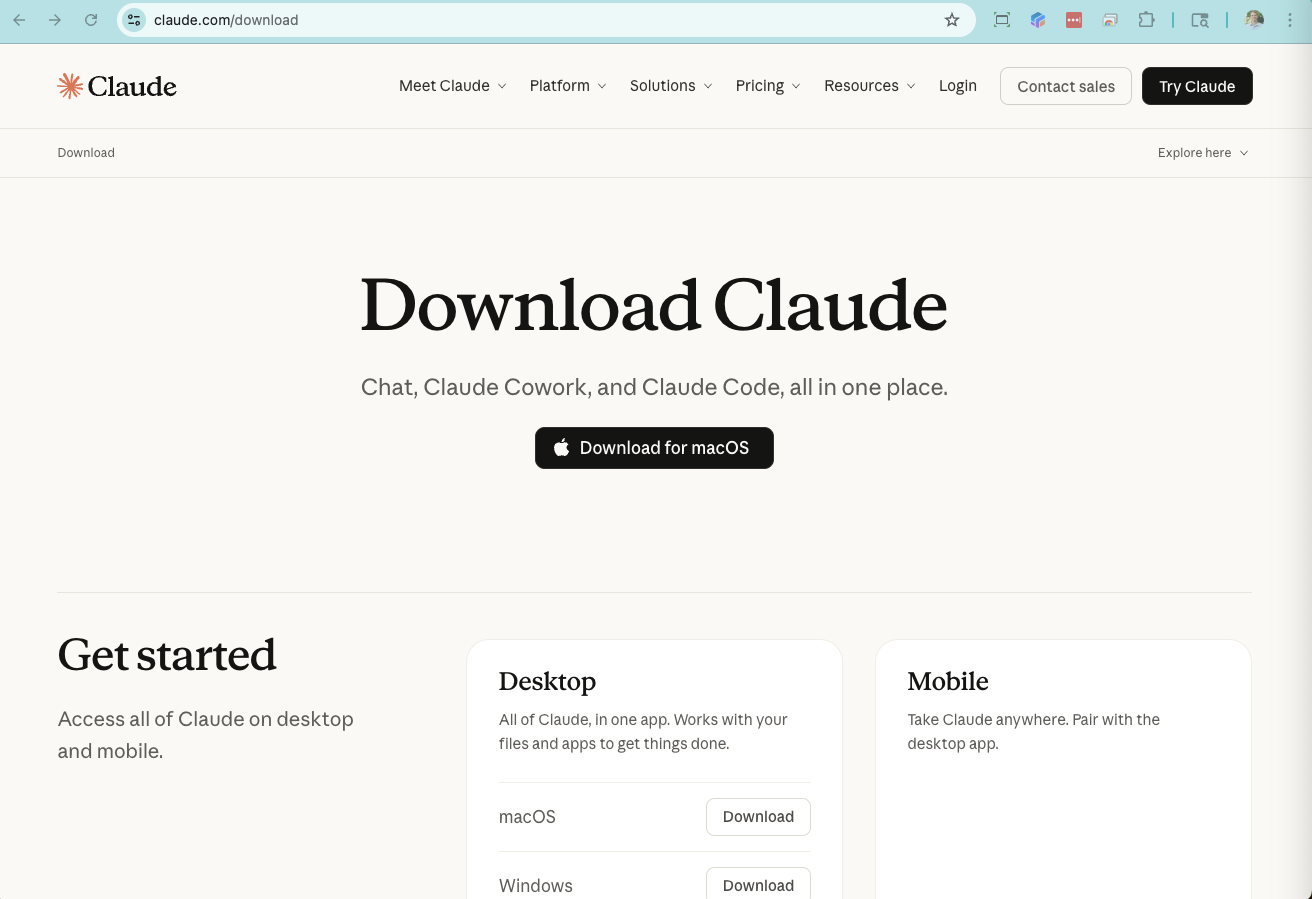
Go to
claude.com/download
2.
Download for
Mac
or
Windows
3.
Open the app and
sign in
(free account works - you just need to be logged in)
Takes 2 minutes.
2
Open It in
a Project Folder.
Use
Cowork
to give Claude context.
1.
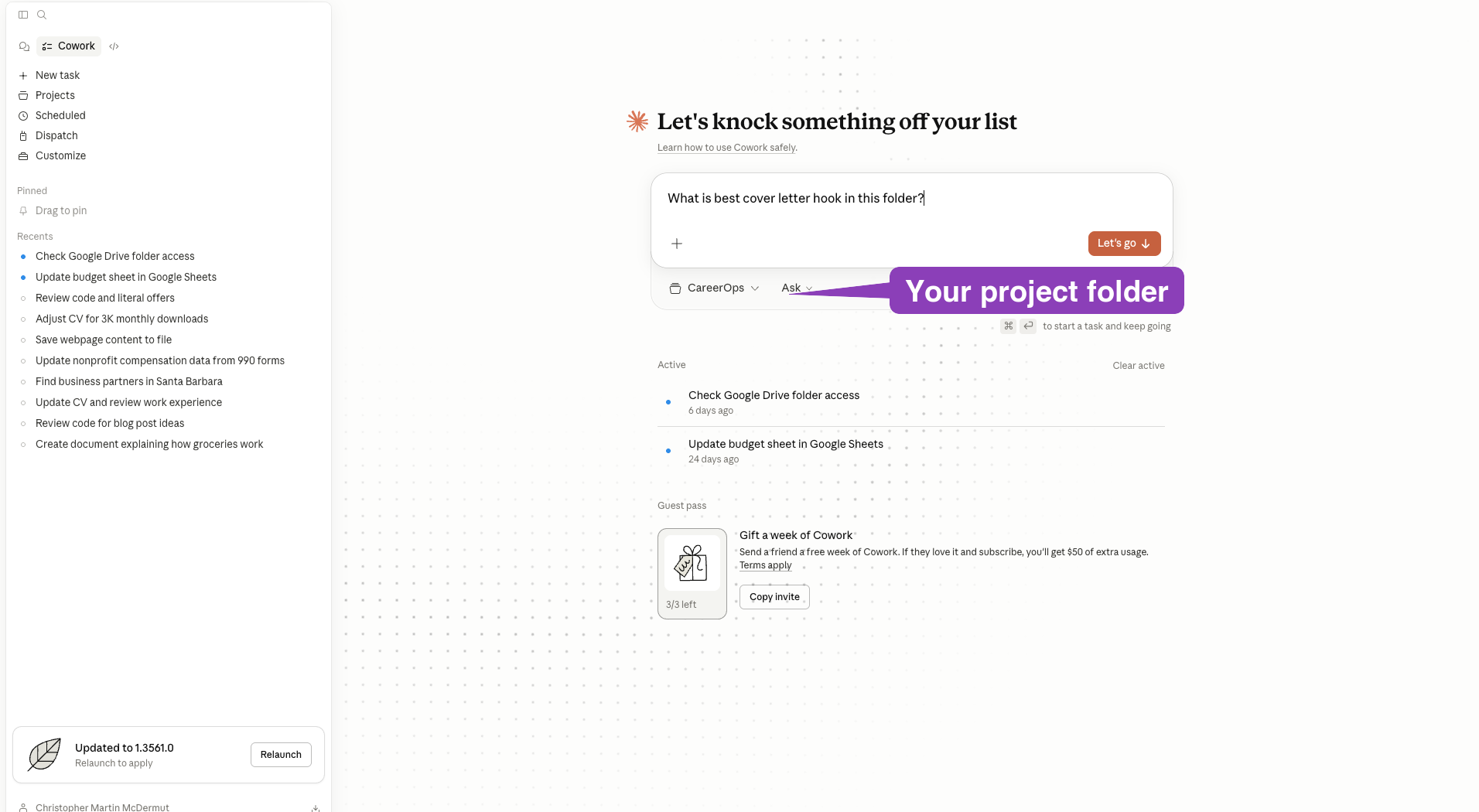
Pick any folder on your computer
(a writing project, business docs, anything)
2.
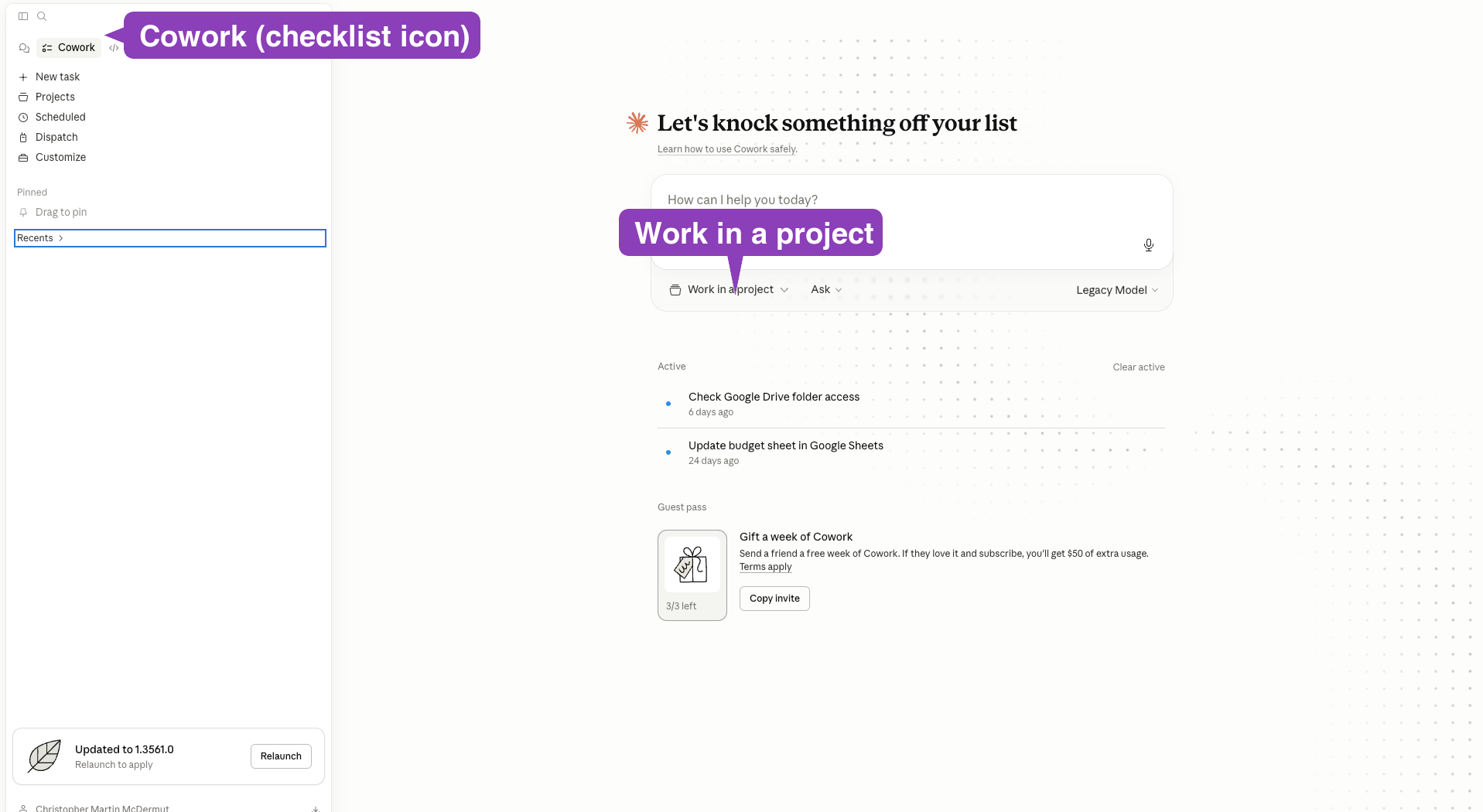
In Claude Desktop, open
Cowork
(adds your folder so Claude can read your files)
3.
Claude can now
see and edit your files
Context changes everything.
Look for three buttons in the top left: Chat, Cowork, and Code. If you see them, click Cowork. If not, no worries - we'll cover this live.
3
Ask It Something.
Try a real question about your project.
"What's the main idea in this draft?"
"Help me outline next steps for this project"
"What's missing from this document?"
"Rewrite this paragraph to be clearer"
Don't overthink the prompt.
Just talk to it like a coworker.
4
Add a Connector.
Give Claude access to a tool you actually use.
1.
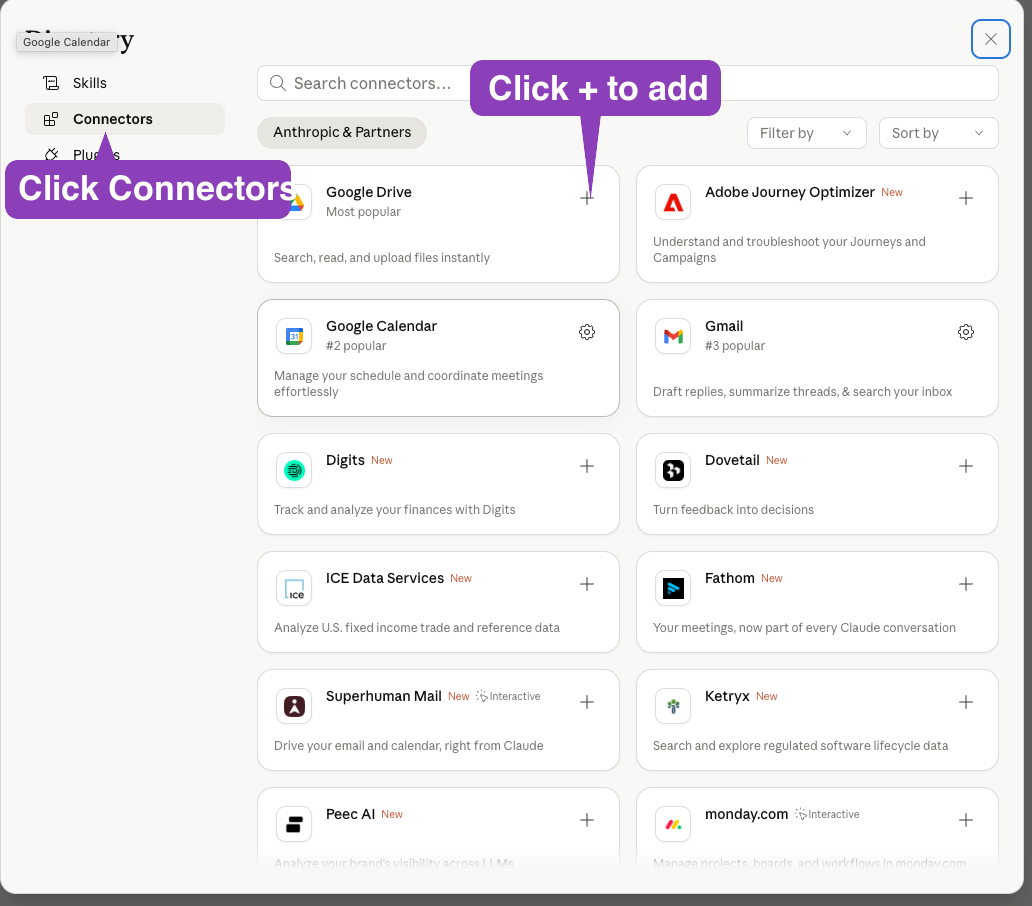
Click
Customize
in the sidebar
2.
Click
Connectors
3.
Hit
+
on one you use -
Google Drive, Calendar, Gmail
4.
Authorize when prompted
This is where it gets interesting.
5
Try Something Bigger.
Use your new connector with your project.
"Draft an email about this project and put it in Gmail"
"Create a Notion page summarizing my notes"
"Find files in my Drive related to this topic"
"Block time on my calendar to finish this draft"
The key idea:
Claude isn't just
telling
you what to do - it's
doing it
, in the tools you already use.
You're Ready.
During the workshop, we'll go deeper -
context, connectors, and building real workflows.
📥
Claude installed
& signed in
📁
A project folder
any files you're working on
🔌
1 connector on
Gmail, Drive, Notion, etc.
See you Tuesday, May 5 at 10am MT.